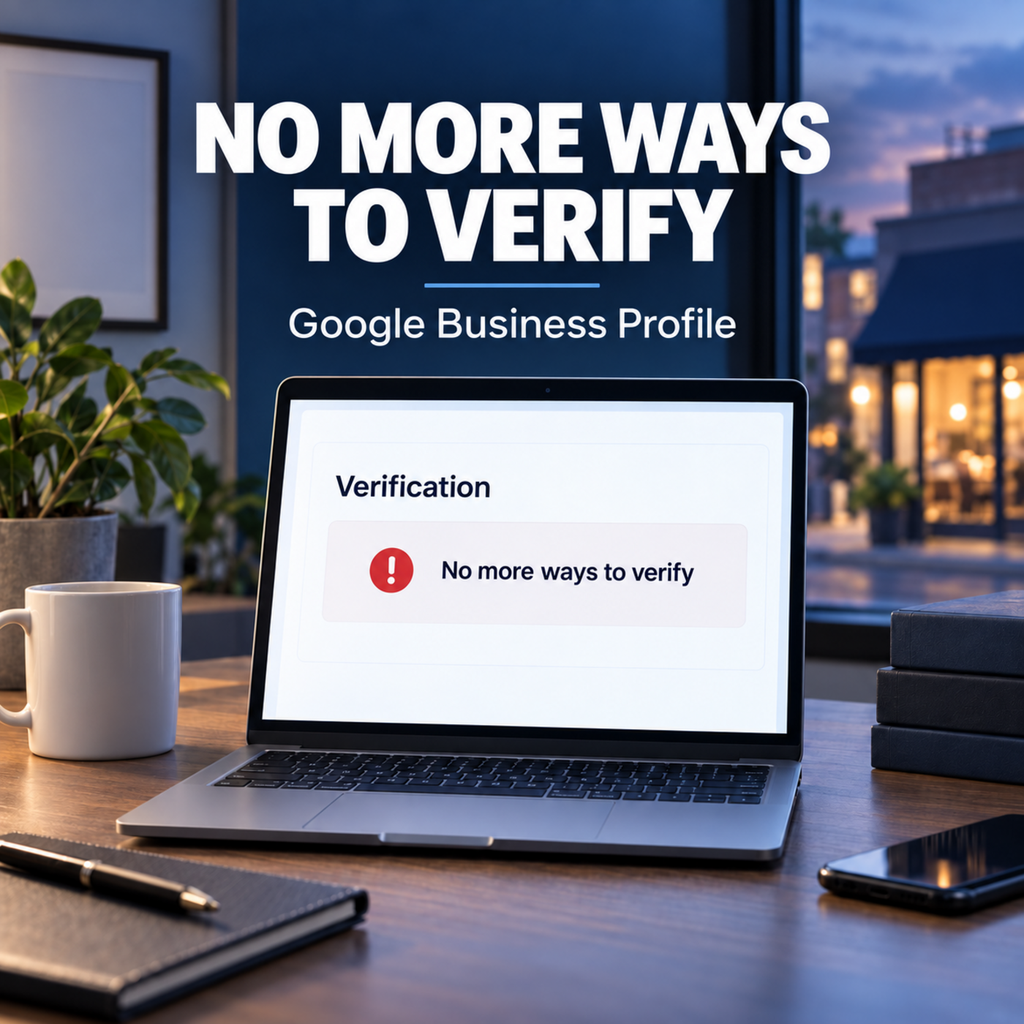
The no more ways to verify Google Business Profile message can appear after a verification video is rejected or the available verification methods disappear. You may have a legitimate business, real documents, and a valid location—but Google still does not provide another button to continue.
Do not create a second profile or start changing everything. First determine whether you have a verification problem, a pending review, a duplicate-profile problem, or a suspension. Each requires a different response.
This guide explains what the message means, what may have caused it, and the safest steps to take next.
Paste this section before “What Not to Do When Verification Options Disappear.”
What Does “No More Ways to Verify” Mean?
The no more ways to verify Google Business Profile message means Google is not currently offering another verification method for that Business Profile. It does not identify the exact reason, and it does not automatically mean your business is ineligible.
Google selects verification methods automatically. The options can depend on the business type, public information, region, business hours, and other profile-specific factors. Business owners cannot demand phone, email, postcard, recorded video, or live video verification when Google has not offered that method.
Before deciding what went wrong, check the exact status shown on your profile:
- Processing or under review: Google says verification review can take up to five business days and occasionally longer.
- Review issues: The submitted video was not accepted. Open the notice and review the stated problems.
- Get verified: Google is allowing another verification attempt.
- No more ways to verify: No verification option is currently available from the profile.
- Suspended or disabled: This is no longer only a verification problem. The profile must be reviewed for compliance before an appeal is submitted.
Take screenshots of the message, the profile status, and any email from Google. The exact wording matters when you contact support.
Why Google Business Profile Video Verification Fails
A rejected video does not prove that the business violated a policy. When it leads to the no more ways to verify Google Business Profile message, it means Google could not confirm all required elements and is not presently offering another method.
According to Google’s official video verification requirements, the recording must be live, unedited, unique, complete, at least 30 seconds long, and recorded through the Business Profile on a mobile device. The video must establish three things:
- The business is operating at the stated location.
- The business actually exists and performs the services represented on the profile.
- The person recording is authorized to manage the business.
Common problems include:
- The street, building number, nearby landmarks, or surrounding area were not clear.
- The business name on permanent storefront signage was missing or did not match the profile.
- The video showed the location but not actual business operations.
- The video did not show employee-only access or another form of management control.
- A service-area business did not show its tools, vehicle, workspace, documents, or evidence of providing the service.
- The business was set up as a storefront even though customers are not received there.
- The recording included breaks, edits, prerecorded footage, private information, or other people’s faces.
- The profile information did not accurately represent the real-world business.
These are possible causes, not a diagnosis. The actual issue must be compared with the profile, Google’s message, the video requirements, and the available business evidence.
No More Ways to Verify Google Business Profile: 7 Steps to Take
1. Confirm Eligibility Before Trying to Fix “No More Ways to Verify Google Business Profile”
A Google Business Profile is intended for a business that makes in-person contact with customers during its stated hours. An online-only business without in-person customer contact is generally not eligible.
Next, confirm the correct business model:
- Storefront: Customers visit the location during the stated hours. The location should be staffed and have permanent signage.
- Service-area business: The business travels to customers and does not serve them at its address. The address should normally be hidden from the public profile.
- Hybrid business: Customers are served at the staffed location and the business also travels or delivers to them.
Do not switch the business type simply to force a verification option. It must match how the business actually operates.
2. Audit the Profile Before Changing Anything
Compare the Business Profile with the real-world business and supporting documents. Review:
- Business name
- Address or hidden-address configuration
- Map pin
- Primary category
- Phone number
- Website
- Business hours
- Existing duplicate profiles
The business name should match the name used on signage, the website, business documents, and other real-world branding. The category should describe what the business is, not every service it offers.
An inconsistency may require correction, but it should not automatically be treated as the confirmed cause of the failure. Avoid making several changes at once. Document what is inaccurate, correct only what is necessary, and keep a record of each change.
3. Check for an Existing or Duplicate Profile
Search Google Maps for the business name, address, old phone numbers, previous names, and former locations. An old, unclaimed, or forgotten listing may create an ownership or verification conflict.
Do not immediately delete, merge, or create another listing. First determine whether the other profile represents the same business, a former location, a practitioner, a department, or a legitimately separate business.
If you find another listing, use our guide to fix duplicate Google Business Profile listings without creating additional suspension risk.
4. Prepare Evidence That Matches the Profile
Gather evidence before contacting Google or submitting another video. Useful documents may include:
- Business registration or license
- Lease or occupancy document
- Utility bill
- Insurance document
- Business invoice
- Photos of permanent storefront signage
- Photos of branded vehicles, tools, equipment, or workspace
- Website pages showing the same business name, location, phone number, and services
The strongest evidence clearly connects the same business name, location, and operation shown on the profile. Do not submit altered documents or documents belonging to another entity.
Cover sensitive numbers that Google does not need, but leave the business name, issuing organization, and relevant address visible.
5. Plan a Stronger Video Before Retrying “No More Ways to Verify Google Business Profile”
If Google restores the video option, plan the route before pressing record. The video must be one continuous recording made and uploaded through the profile.
For a storefront or hybrid business, show:
- A street sign, building number, nearby business, or recognizable location marker
- The exterior of the location
- Permanent signage displaying the same business name used on the profile
- The interior, products, equipment, or active workspace
- Proof of management, such as unlocking the location, accessing an employee-only area, opening a register, or operating a point-of-sale system
For a service-area business, show:
- Street signs, nearby landmarks, or other clear identifiers near the operating address
- Professional tools, equipment, products, business cards, branded apparel, or a work vehicle
- Proof that you control the business, such as unlocking a branded vehicle, accessing the workspace, performing the service, or showing a non-sensitive business document that matches the profile name
Do not show faces, identification numbers, bank details, tax numbers, or unrelated private information.
6. Use “Review Issues” or Another Method Only If Google Offers It
When the profile displays Review issues, open it before recording again. Google may identify missing elements such as the business name, surrounding area, or proof of authorization.
Include everything shown in the first video plus the missing proof identified by Google. If the profile offers another method—such as phone, email, live video, or mail—you may use it. Verification methods are assigned by Google and cannot be manually selected if they are not displayed.
If the profile remains under review, avoid unnecessary changes while the review is pending. Changing major details can lead to another verification request.
7. Contact Google With a Complete Case
If the profile still shows no more ways to verify Google Business Profile, contact Google Business Profile support from the Google account that owns or manages the listing.
Your request should include:
- Business name
- Business Profile ID
- Business address used for verification, even if it is hidden publicly
- Website and business phone number
- Screenshot of the error
- Date and result of the previous verification attempt
- Short explanation of the business model: storefront, service-area, or hybrid
- The specific evidence available to prove the location, operation, and ownership
- Existing support case number, if one was already created
Keep the explanation factual. Do not claim that Google made an error unless the evidence establishes that. Ask Google to review the verification issue and restore an appropriate verification path.
If you want the profile and evidence reviewed before contacting Google, use our Google Business Profile verification service.
What Not to Do When Verification Options Disappear
When facing the no more ways to verify Google Business Profile message, avoid these common reactions:
- Do not create another profile. A duplicate can make ownership and verification more complicated.
- Do not keep changing the name, address, category, and phone number. Random edits make the facts harder to document and may trigger additional review.
- Do not submit the same failed video without correcting the missing proof.
- Do not use a virtual office, mailbox, or address where the business does not operate.
- Do not display a residential address for a service-area business that does not receive customers there.
- Do not submit fake signage, altered documents, or borrowed equipment.
- Do not confuse verification with reinstatement. A suspended or disabled profile requires a compliance review and appeal process.
If the profile says the appeal was not approved, follow the process for a denied Google Business Profile appeal instead of repeatedly attempting verification.
Verification Problem or Suspension?
These issues can look similar, but the next step is different.
| Status | What it usually means | Next step |
|---|---|---|
| Verification required | Google has not confirmed control of the business | Complete an offered verification method |
| Review issues | A submitted video did not meet the requirements | Review the stated issues and record a stronger video |
| No verification methods available | Google is not currently offering another method | Audit the profile and contact support with evidence |
| Suspended or disabled | Google restricted the profile for a possible policy issue | Diagnose compliance before appealing |
| Appeal not approved | Google rejected a submitted reinstatement appeal | Correct unresolved issues and prepare the next eligible review |
Verification does not guarantee that a profile complies with every policy. Google may require reverification after business information changes, and a verified profile can still be suspended if it does not comply with the guidelines.
Get Your Verification Case Reviewed
The no more ways to verify Google Business Profile message is not a reason to guess. The right response depends on the business model, profile setup, Google’s exact message, previous attempts, and the evidence available.
GBP Suspensions reviews failed verification cases, rejected videos, missing verification methods, duplicate conflicts, and profiles that were verified and then suspended. We identify the likely problem only after comparing the profile with current Google policy and the actual evidence.
Request a free Google Business Profile verification case review.
Frequently Asked Questions
Why does my Google Business Profile say “no more ways to verify”?
The no more ways to verify Google Business Profile notice means Google is not currently offering another verification method for that profile. The message does not identify one confirmed cause. Review the profile status, previous verification result, business eligibility, profile information, duplicates, and available evidence before contacting support.
Can I choose a different Google Business Profile verification method?
No. Google automatically determines which methods are available. Depending on the profile, Google may offer phone, text, email, recorded video, live video, mail, or more than one method—but a business owner cannot force an option that is not displayed.
How long does Google Business Profile video verification take?
Google says video verification review can take up to five business days. In some cases it may take longer. If the profile is still within that review period, avoid unnecessary edits and wait for the result.
What should a service-area business show in its verification video?
Show clear location identifiers near the operating address, the tools or equipment used for the business, and proof that you manage the operation. This could include unlocking a branded work vehicle, accessing business equipment, performing the service, or showing a non-sensitive business document that matches the profile name.
Should I create a new profile if Google gives me no verification options?
No. Creating another profile can produce a duplicate and make the case more difficult. Audit the existing profile, gather matching evidence, and use the official support process.
Is “no more ways to verify” the same as a suspension?
No. A verification problem means Google has not confirmed the profile. A suspension or disablement means Google restricted the profile for a possible policy issue. Check the exact status before taking action.